
Safe mode vs factory reset: which one should you try first
Try Android Safe mode before a factory reset to separate bad apps from system or hardware problems without erasing your phone.
That advice sounds too simple, but it’s the right answer for most Android troubleshooting. Safe mode is quick, reversible, and doesn’t erase anything. A factory reset wipes the phone and can turn a five-minute problem into an evening of reinstalling apps, restoring accounts, and finding settings you forgot you changed.
Safe mode first. Reset last.
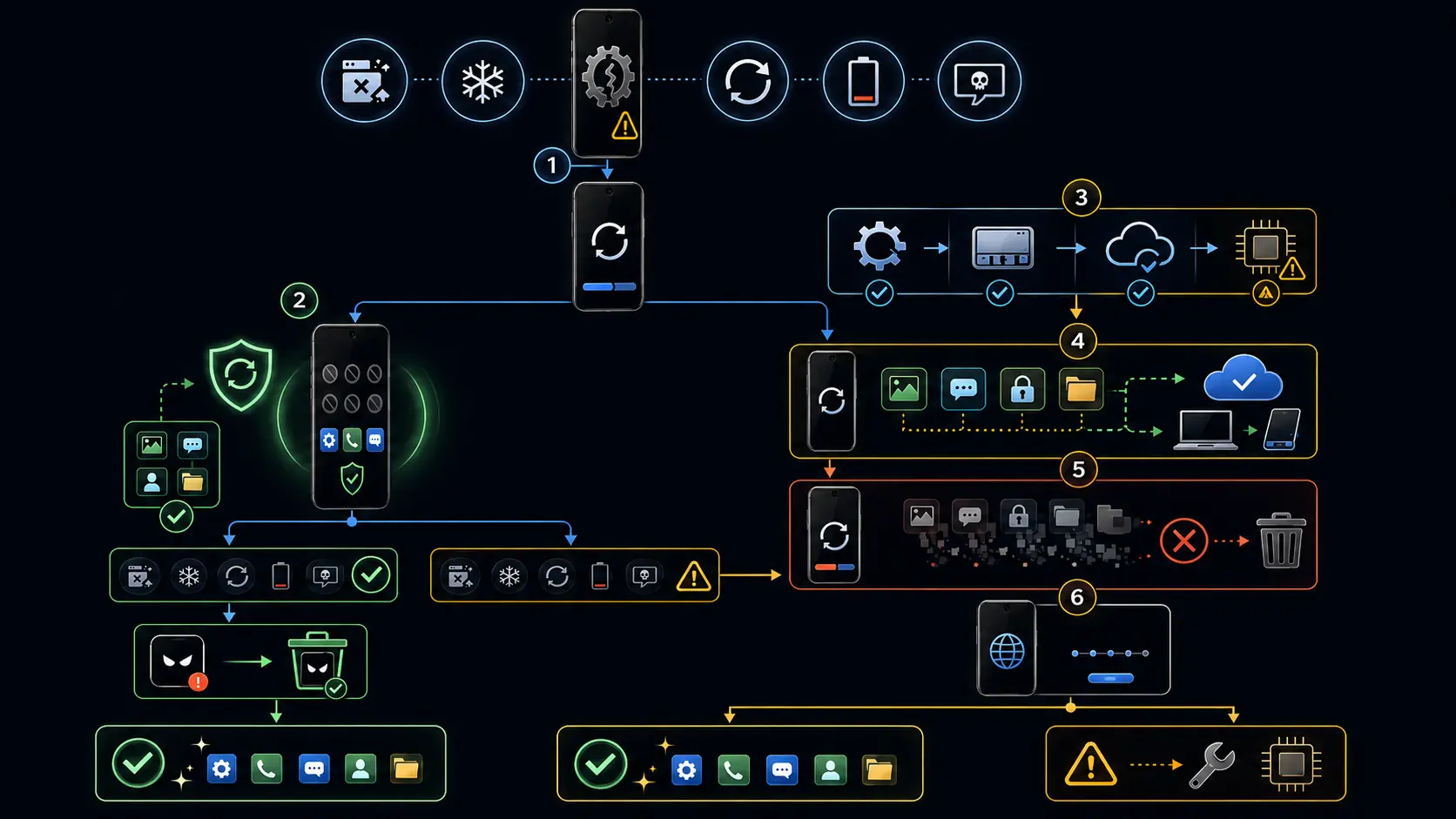
What safe mode tells you
Safe mode starts Android with downloaded apps disabled. The phone still runs, but the apps you installed from Google Play or sideloaded aren’t active. Pre-installed system apps remain available, so you can test calls, messages, Wi-Fi, basic settings, and the parts of Android needed to diagnose the issue.
Safe mode is not a cure. It’s a test.
It answers one question: is a downloaded app causing the problem? If the phone stops freezing, overheating, crashing, or draining battery in safe mode, an app is probably involved. If the same problem continues in safe mode, you’re looking at the operating system, a pre-installed app, a setting, or hardware.
That split saves time. Without it, people jump straight to factory reset because the phone feels broken. Half the time, the real problem is one sketchy cleaner app, a launcher, a VPN, a battery optimizer, or a game update that went sideways.
How to start safe mode
The exact button path depends on the phone.
On many Android phones, open the power menu, then press and hold Power off or Restart on the screen. When the safe mode prompt appears, tap OK.
On Pixel 6 and newer, including Fold models, Google lists the path as Power + Volume up for a few seconds, then long-press Power off or Restart, then tap OK. On Pixel 5a and older, the regular power button path may be enough. If the phone is already off, turn it on and hold Volume down while the boot animation plays until safe mode appears.
On Samsung Galaxy phones, press and hold the power key or the side-key combination that opens the power menu. Tap and hold Power off, then choose Safe mode.
You’ll know it worked because the phone shows “Safe mode” at the bottom of the screen. To leave safe mode, restart the phone normally.
One small Pixel quirk: Google notes that Airplane mode turns on automatically when Pixel enters safe mode. Turn Airplane mode off if you need Wi-Fi, GPS, or calls while testing.
What to do with the result
If the problem disappears in safe mode, restart normally and start removing recent suspects.
Begin with apps installed or updated right before the problem started. Launchers, antivirus apps, VPNs, accessibility tools, file cleaners, automation apps, and sideloaded APKs deserve extra suspicion because they can sit close to system behavior. Uninstall one, use the phone for a while, then test again.
It’s tedious. It works.
Don’t uninstall ten apps at once unless you don’t care which one caused the trouble. Removing apps one by one gives you an answer. Removing a pile gives you a cleaner phone but no diagnosis.
If the problem stays in safe mode, update the phone, update Google Play system components, reset app preferences, and check storage. A phone at 98% storage can behave badly even when no single app is at fault. Also check whether the issue began right after a system update. Android 17 has just started rolling out to supported Pixel phones first, with other brands following later, so some update-related bugs will be Pixel-heavy at launch simply because Pixels get the new version first.
What factory reset does
A factory reset erases user data from the phone. Apps and their data are removed. Local files are removed. Accounts are removed from the device. Photos and messages survive only if they’re backed up or synced somewhere else.
It does not usually roll the phone back to the Android version it shipped with. It resets the currently installed system to a clean state. If your Pixel updated to Android 17, a factory reset won’t take it back to Android 16.
Factory reset is useful when Android’s user-side state is badly broken, when you’re selling or giving away the phone, or when you need a clean baseline after exhausting safer steps. It is not a normal first troubleshooting step for random app crashes.
Before you reset, charge the phone. Google recommends at least 70%. Make sure you know the Google Account and password on the phone, because Factory Reset Protection can require that account after the reset. Connect to Wi-Fi or mobile data during setup. Back up photos, contacts, files, authenticator recovery codes, WhatsApp chats, Signal messages if you use them, and anything stored only on the device.
One newer detail people miss: on Android 15 and later, some wallet apps can back up transit cards with funds, and Android may remind you about that during reset. Don’t skip wallet warnings if you use transit passes.
Steps to try before factory reset
Reset app preferences. This restores disabled apps, app defaults, notification restrictions, background data restrictions, permissions, and on some newer builds battery usage settings, without deleting app data.
Clear cache or storage for one bad app. If only one app is broken, don’t punish the whole phone.
Check system and app updates. A pending patch can fix the exact thing you’re fighting.
Free up storage. Keep enough room for Android to write temporary files, update apps, and manage databases. If the phone is nearly full, weird performance is not weird at all.
Skip the old “wipe cache partition” advice unless your phone actually offers it. Many modern Android phones, including Pixels, don’t expose that option the way older devices did. If your manufacturer’s recovery menu has it, it can be a harmless intermediate step. If it isn’t there, move on.
When factory reset makes sense first
There are cases where safe mode isn’t the right first move.
If you’re selling, trading, recycling, or giving away the phone, factory reset is the correct step after backup and account removal.
If the phone can’t reach the lock screen, can’t boot normally, and safe mode is inaccessible, recovery-mode reset may be your only user-level option.
If you installed a malicious APK, gave it powerful permissions, and can’t remove it even in safe mode, a factory reset can be the cleanest route. If the device is rooted, the bootloader was modified, or you suspect deeper compromise, resetting from Settings may not be enough. In that case, use official firmware tools or professional help.
If the phone has obvious hardware symptoms, factory reset won’t help. A swollen battery, a damaged charging port, a flickering display after a drop, or random restarts triggered by flexing the phone are repair problems, not reset problems.
Safe mode is the fork in the road. Use it before you erase everything.
Sources
Turn symptoms into a clearer picture of your phone's health.
runcheck connects battery, heat, signal, and storage patterns so you can see what is really dragging a phone down.